Feature Status and Lifecycle Management
In DevCycle, Features have Statuses that indicate their current position in the feature lifecycle. Statuses provide a clear, at-a-glance understanding of where a Feature is in its development, release, and cleanup process.
Each Status belongs to a Status Category, which defines how the Feature behaves, what actions are allowed, and how it is displayed across the dashboard.
Statuses
Every Feature in DevCycle always has one Status, which determines its lifecycle stage.
By default, DevCycle provides a set of predefined Statuses aligned to core lifecycle categories.
The default Statuses are:
- Development
- Live
- Completed
- Archived
In addition to the default Statuses, teams can define custom Statuses within their Project settings. This allows teams to better align Feature lifecycle tracking with their internal development and release processes while preserving DevCycle's lifecycle guarantees. Each custom Status inherits the behavior of their Category.
Status changes are not automatic and are always managed explicitly by the user.
Status Categories
Statuses are grouped into Categories, which define shared lifecycle behavior.
Development
This Category represents Features that are actively being built, tested, or prepared for release.
By default, new Features are created with the Development Status.
While a Feature is in Development, all Targeting rules and Variations remain editable.
This stage is typically used while work is ongoing and before a Feature is considered ready for a broader release.
Below are some examples of different Statuses that would make sense in the Development Category:
- In Development
- Pending Design
- QA
- Internal Testing
Live
The Live Category represents Features that are actively running in production or being exposed to users.
While a Feature is Live, all Targeting rules and Variations remain editable.
Below are some examples of different Statuses that would make sense in the Live Category:
- Beta
- Ramping
- In Production
- Live Experiment
Completed
The Completed Category represents Features that have reached the end of active development and rollout.
A Feature may be considered Completed once it has been tested, approved, and is fully released, or when no further targeting changes are expected.
When a Feature is moved into a Status within the Completed Category, it enters a semi-read-only state:
- A single final (release) Variation must be selected
- All Environments will serve this Variation to all users
- Targeting rules are replaced with an "All users" rule
- New targeting rules and Variations cannot be added
- Variable values may still be edited
- Environments can still be toggled on or off
When using the CLI to generate TypeScript types, Variables belonging to a Feature in the Completed Category will be marked as deprecated.
Below are some examples of different Statuses that would make sense in the Completed Category:
- Ready for Cleanup
- All Users Enabled
- Stable Release
Cleanup Checklist
Upon entering a Completed Status, a cleanup checklist is shown for each Variable associated with the Feature.
This checklist helps teams determine when it is safe to remove Variables from their codebase or archive them.
If a Variable is still referenced in code or evaluated in production, removing it may result in default values being served.
If Code References are enabled, additional context will be provided to assist with cleanup.
Archived
The Archived Category represents the terminal lifecycle state for Features. This Category and Status cannot be edited or changed.
A Feature should be archived once it has been fully cleaned up and its Variables have been removed from the codebase.
When a Feature is Archived:
- It becomes fully read-only
- It is hidden from standard dashboard views
- Audit Logs remain accessible for historical reference
- Metrics & Reach data will not be visible on the dashboard for Archived features
Archiving Features helps keep both your dashboard and codebase clean while preserving valuable lifecycle history.
Note: Feature deletion still exists, but should only be used for mistakes. Deleting a Feature permanently removes it and its Audit Log. Archived Features retain historical data that may be used for future reporting and analysis.
Changing Status
Moving a Feature to Completed
When a Feature is moved into the Completed Category:
- A final Variation must be selected
- All Environments serve that Variation to all users
- Existing Environment statuses are preserved
- Targeting rules are replaced with a single "All users" rule
- Additional Variations and targeting rules are locked
Reverting to Development or Live
Features in the Completed Category can be reverted back to an earlier Status.
When reverting:
- Previous Variations become available again
- Changes made to Variable values while Completed are retained
- Prior targeting rules are not restored and must be reconfigured
Viewing Features by Status (Kanban View)
On the Feature list page, users can switch between a List view and a Kanban-style view that displays Features grouped by their current Status, allowing teams to quickly visualize progress across the Feature lifecycle.
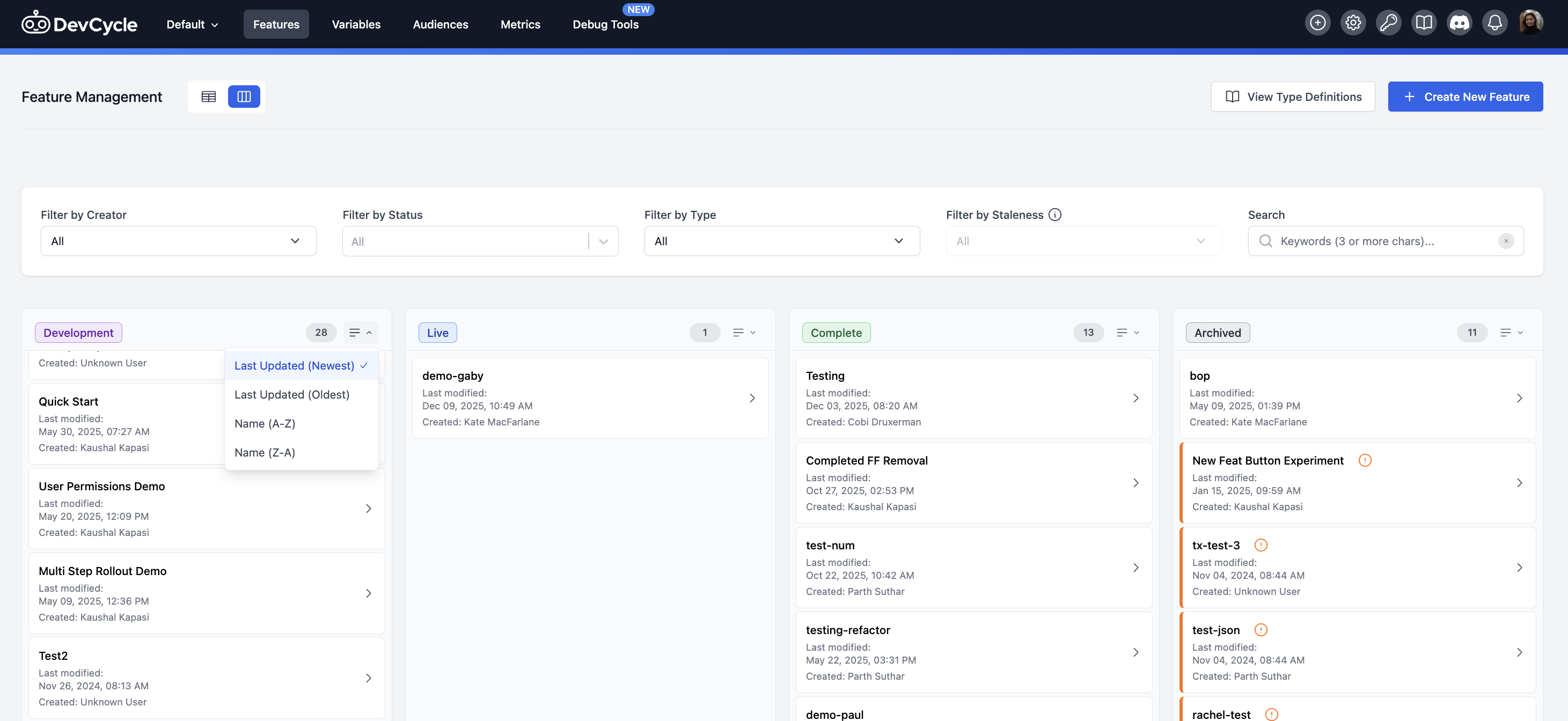
In this view:
- Each column represents a Feature Status
- Each column header includes a total count of Features in each Status
- Features appear as cards within the column matching their current Status, and can be sorted differently by selected criteria
- Columns are ordered based on the Status order defined in Project Settings
- Status colors are reflected in the column headers for quick visual scanning
This view is intended for high-level lifecycle tracking and workflow management. Selecting a Feature card opens the Feature detail view for configuration, targeting, and Variable management.
Managing Statuses
Statuses are managed at the Project level and apply to all Features within that Project.
Each Project starts with a default set of Statuses aligned to DevCycle's lifecycle categories. Teams may customize these Statuses to better reflect their internal workflows.
Project Settings
Statuses can be viewed and managed from the Project Settings page under the Feature Statuses section.
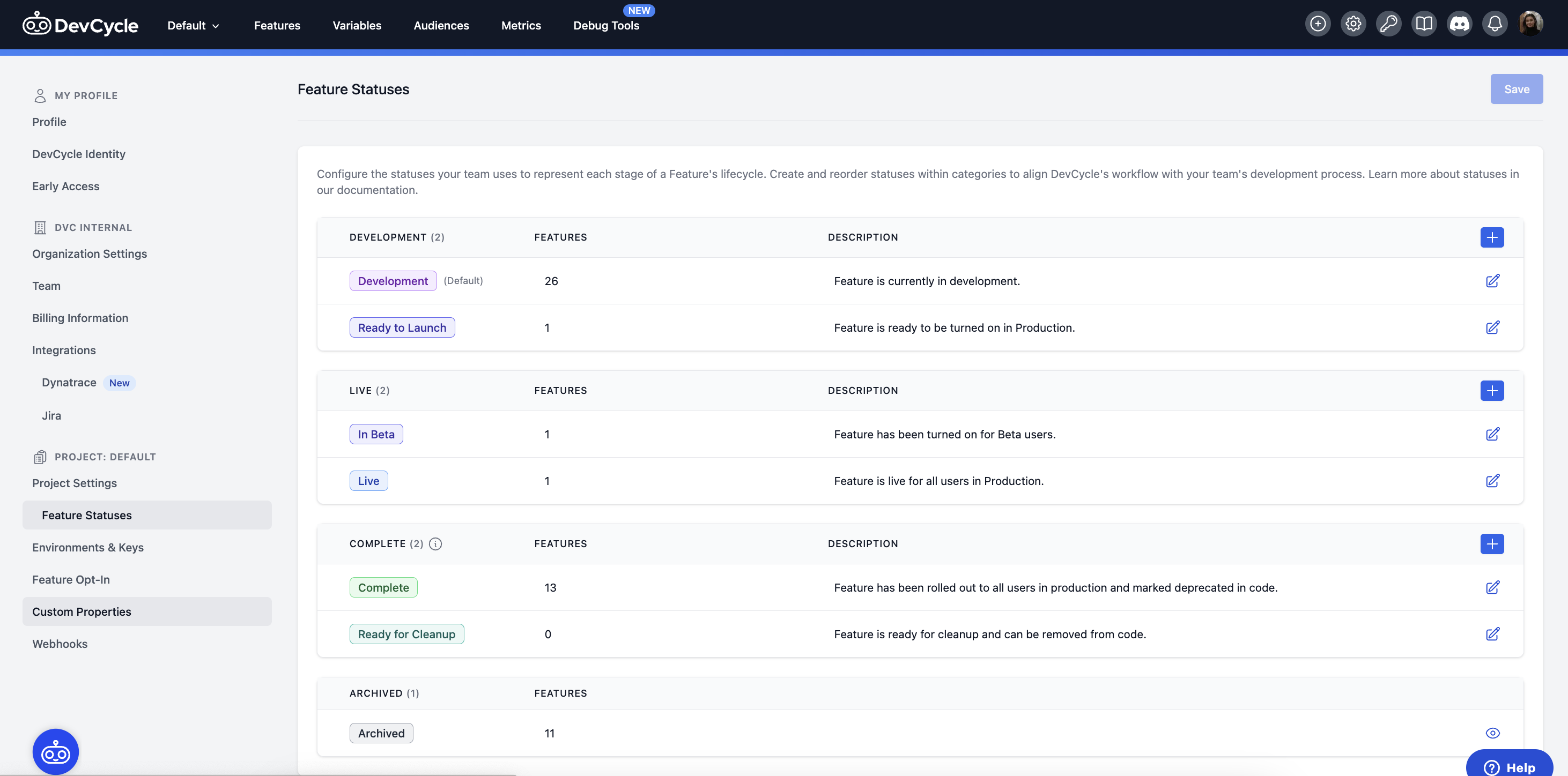
From this page, users can:
- View all Statuses grouped by Category
- Create new custom Statuses within supported Categories
- Edit existing Status names (Note: each Status must have a unique key)
- Reorder Statuses within a Category
- Assign colors to Statuses for quick visual identification
- Add a description to provide context behind what a Status represents
- Select the default Status applied when a new Feature is created
Changes made in Project Settings take effect immediately and apply across the Project.
Status Categories and Rules
Statuses must belong to one of DevCycle's predefined Categories.
The following rules apply:
- New Categories cannot be created
- Each Category must contain at least one Status
- The last remaining Status in a Category cannot be deleted
- Status labels and ordering within a Category can be modified
Permissions for Status Changes
Permission Rules
When permissions are enabled:
- Statuses in the Development and Live Categories can be applied by any user with access to the Project
- Statuses in the Completed and Archived Categories can only be applied by users with the Publisher permission
- Only Publishers can create, and modify Feature Statuses in the Project Settings